
Excel is a powerful tool used by professionals across various industries for data analysis, reporting, and decision-making. One of the most useful functions in Excel is the Average If function, which allows users to calculate the average of a range of cells that meet specific criteria. This function is particularly handy when dealing with large datasets where manual calculations would be time-consuming and error-prone.
Understanding the Average If Excel Function
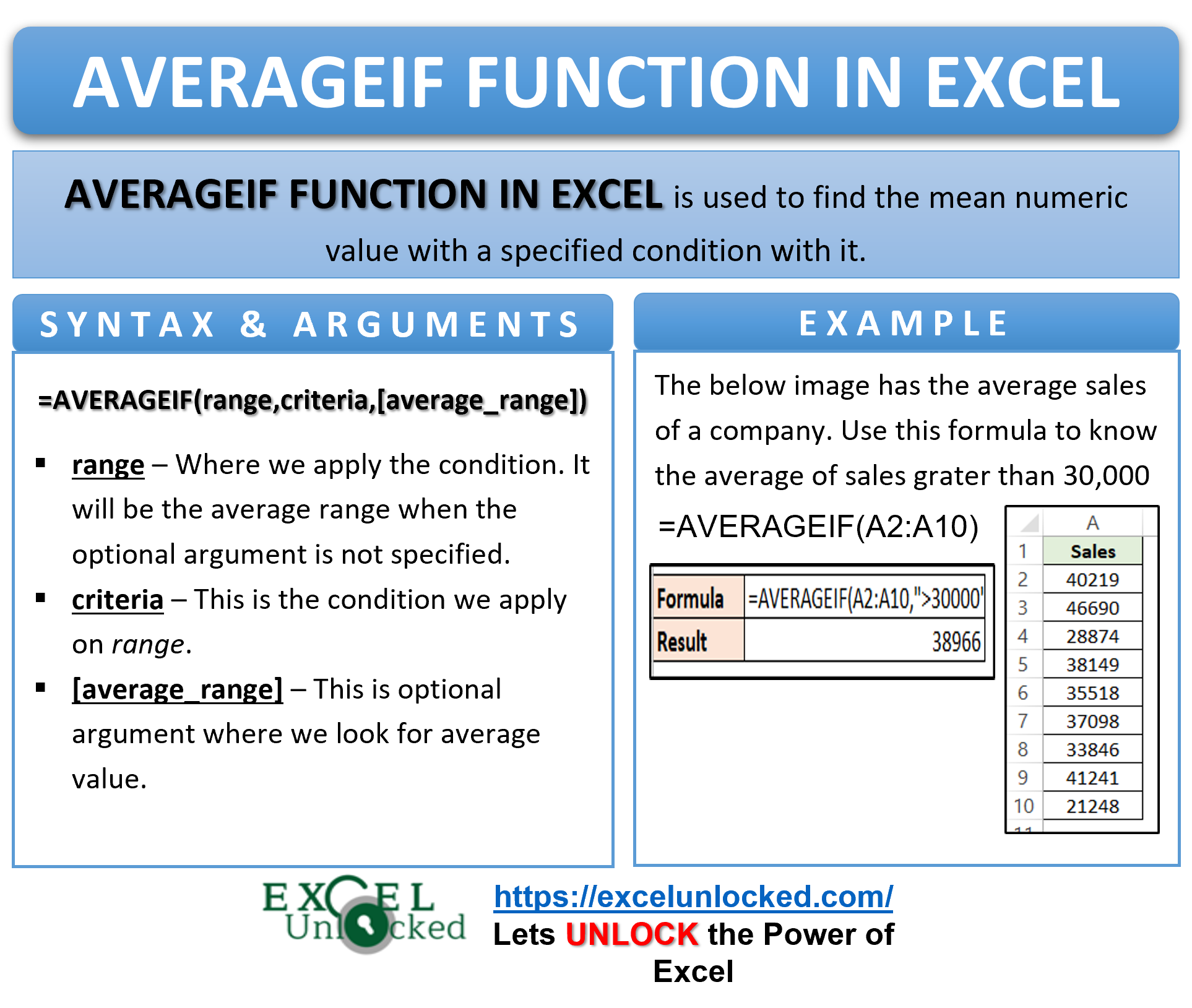
The Average If function in Excel is designed to calculate the average of values in a range that meet a specified condition. The basic syntax of the Average If function is:
AVERAGEIF(range, criteria, [average_range])
- range: The range of cells to evaluate.
- criteria: The condition that must be met for a cell to be included in the average.
- average_range: (Optional) The actual cells to average. If omitted, the function uses the range.
For example, if you have a list of sales data and you want to calculate the average sales for a specific region, you can use the Average If function to easily get this information.
Basic Examples of Average If Excel
Let's start with a simple example to illustrate how the Average If function works. Suppose you have the following data in cells A1 to B6:
| Region | Sales |
|---|---|
| North | 100 |
| South | 150 |
| East | 200 |
| West | 250 |
| North | 300 |
| South | 350 |
To calculate the average sales for the "North" region, you would use the following formula:
=AVERAGEIF(A2:A7, "North", B2:B7)
This formula will return the average sales for the "North" region, which is 200.
💡 Note: The criteria in the Average If function can be a number, text, or a cell reference. Make sure the criteria are enclosed in double quotes if they are text.
Advanced Usage of Average If Excel
The Average If function can be combined with other Excel functions to perform more complex calculations. For example, you can use the Average If function in conjunction with the SUMIF and COUNTIF functions to get more detailed insights from your data.
Combining Average If with SUMIF
Suppose you want to calculate the total sales for the "North" region and then find the average of these totals. You can use the SUMIF function to get the total sales and then divide by the count of sales in the "North" region.
First, calculate the total sales for the "North" region using the SUMIF function:
=SUMIF(A2:A7, "North", B2:B7)
This will return 400, the total sales for the "North" region.
Next, calculate the count of sales for the "North" region using the COUNTIF function:
=COUNTIF(A2:A7, "North")
This will return 2, the number of sales entries for the "North" region.
Finally, divide the total sales by the count of sales to get the average:
=SUMIF(A2:A7, "North", B2:B7) / COUNTIF(A2:A7, "North")
This will return 200, the average sales for the "North" region.
Using Average If with Multiple Criteria
Sometimes, you may need to calculate the average based on multiple criteria. While the Average If function itself does not support multiple criteria directly, you can use an array formula to achieve this. For example, suppose you want to calculate the average sales for the "North" region where the sales are greater than 150.
You can use the following array formula:
=AVERAGE(IF((A2:A7="North")*(B2:B7>150), B2:B7))
To enter this as an array formula, press Ctrl+Shift+Enter instead of just Enter. Excel will automatically add curly braces {} around the formula to indicate that it is an array formula.
💡 Note: Array formulas can be more complex and may require additional understanding of Excel functions and syntax.
Common Mistakes and Troubleshooting
While the Average If function is straightforward, there are some common mistakes that users often make. Here are a few tips to help you troubleshoot any issues you might encounter:
- Incorrect Range: Ensure that the range specified in the Average If function matches the criteria range. If the ranges do not match, the function will return an error.
- Criteria Format: Make sure the criteria are in the correct format. Text criteria should be enclosed in double quotes, and numerical criteria should be entered as numbers.
- Empty Cells: If the range contains empty cells, the Average If function will ignore them. However, if the criteria range contains empty cells, it may affect the results.
- Array Formulas: When using array formulas, ensure that you press Ctrl+Shift+Enter to enter the formula correctly. Failure to do so will result in an error.
By keeping these tips in mind, you can avoid common mistakes and ensure that your Average If calculations are accurate.
Real-World Applications of Average If Excel
The Average If function has numerous real-world applications across various industries. Here are a few examples:
- Sales Analysis: Calculate the average sales for different regions, products, or time periods to identify trends and make data-driven decisions.
- Financial Reporting: Analyze financial data to calculate the average expenses, revenues, or profits for different departments or projects.
- Marketing Campaigns: Evaluate the performance of marketing campaigns by calculating the average click-through rates, conversion rates, or return on investment (ROI).
- Human Resources: Analyze employee performance data to calculate the average salaries, performance ratings, or turnover rates for different departments or job roles.
These examples illustrate the versatility of the Average If function and its potential to enhance data analysis and decision-making in various fields.

Conclusion
The Average If function in Excel is a powerful tool for calculating the average of values that meet specific criteria. Whether you are analyzing sales data, financial reports, or marketing campaigns, the Average If function can help you gain valuable insights and make informed decisions. By understanding the basic syntax and advanced usage of the Average If function, you can leverage its capabilities to enhance your data analysis skills and improve your productivity. With practice and experimentation, you can master the Average If function and unlock its full potential in your Excel workflows.
Related Terms:
- countif excel
- averageif function in excel
- average excel
- excel formula for average if